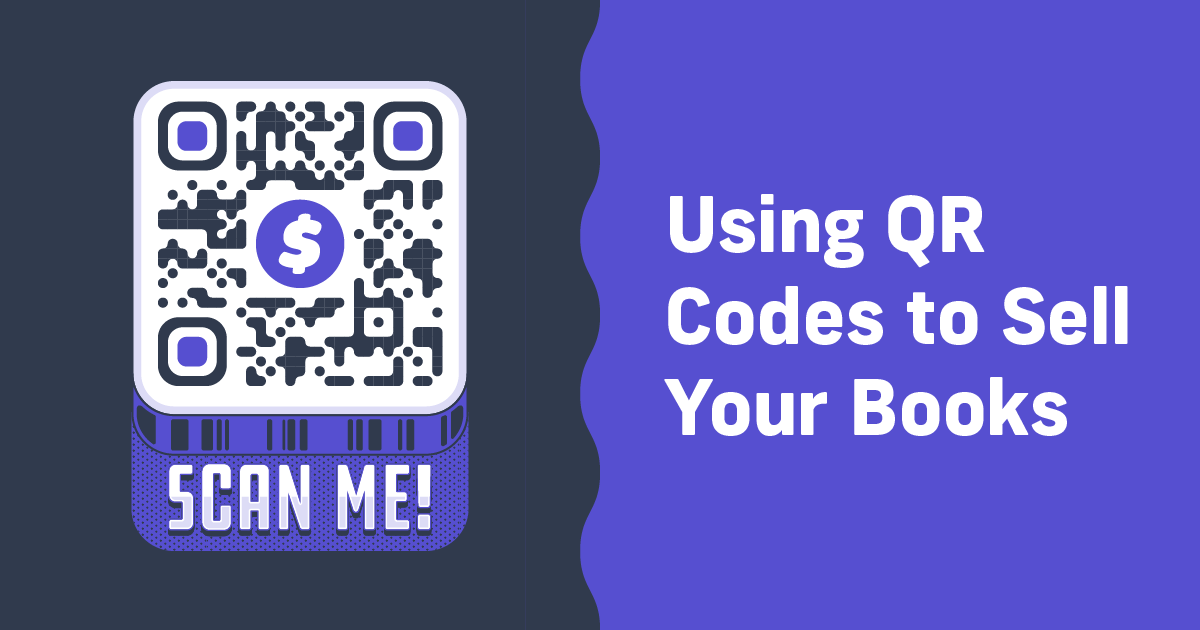
Using QR Codes to Sell Your Books
The Direct Buy Button is Lulu’s fast and easy way to make your book available for sale anywhere. Literally, you publish on Lulu, link your account to a Stripe profile, and we build a checkout for your book.
One really cool thing that the Buy Button unlocks is the ability to use QR codes to sell your book.
Yes, you’ve always been able to link a QR code to a Lulu Bookstore listing, a retail site, or to your personal website if you’re using Lulu Direct. The Buy Button just makes the process significantly easier.
Have you ever thought about using a QR code to sell your book? If you answered yes, this post is for you. Keep reading.
How Do QR Codes Work?
The term ‘QR Code’ is short for Quick Response Code. And, according to Wikipedia, it was invented in Japan to label auto parts in the mid-90s. That’s a factoid I didn’t know until recently; I guess I’d just never questioned what the ‘QR’ stood for.
Anyway, a QR code is a two-dimensional image that points to a web location. It’s similar to a barcode, but the key difference is that a barcode contains specific, unique information about a product while the QR code is an online redirect. That allows for a much broader range of uses, including capturing data from scans and pointing to relevant pages.
Essentially, when a person scans the QR code with their phone camera, they’ll have the option to open the associated webpage.
For content creators and marketers, QR codes are an amazing tool. They enable smoother mobile interactions—you really can’t expect someone to see a URL and physically type it into their phone’s browser, can you? And they help you gather traffic data to see whether your QR code is effective.
And they’re a great way to rickroll your coworkers.
Using Lulu to Create QR Codes for Your Book
You’ve always had the option to publish your book to the Lulu Bookstore and share the link to that page through a QR code. But those pages are static, controlled by the team at Lulu, and are limited to just the details we can present.
When you use the Direct Buy Button to create a distinct URL just for your book, you control the entire experience. It will open in a checkout experience powered by Stripe and allow someone to instantly buy your book. Here’s an example:
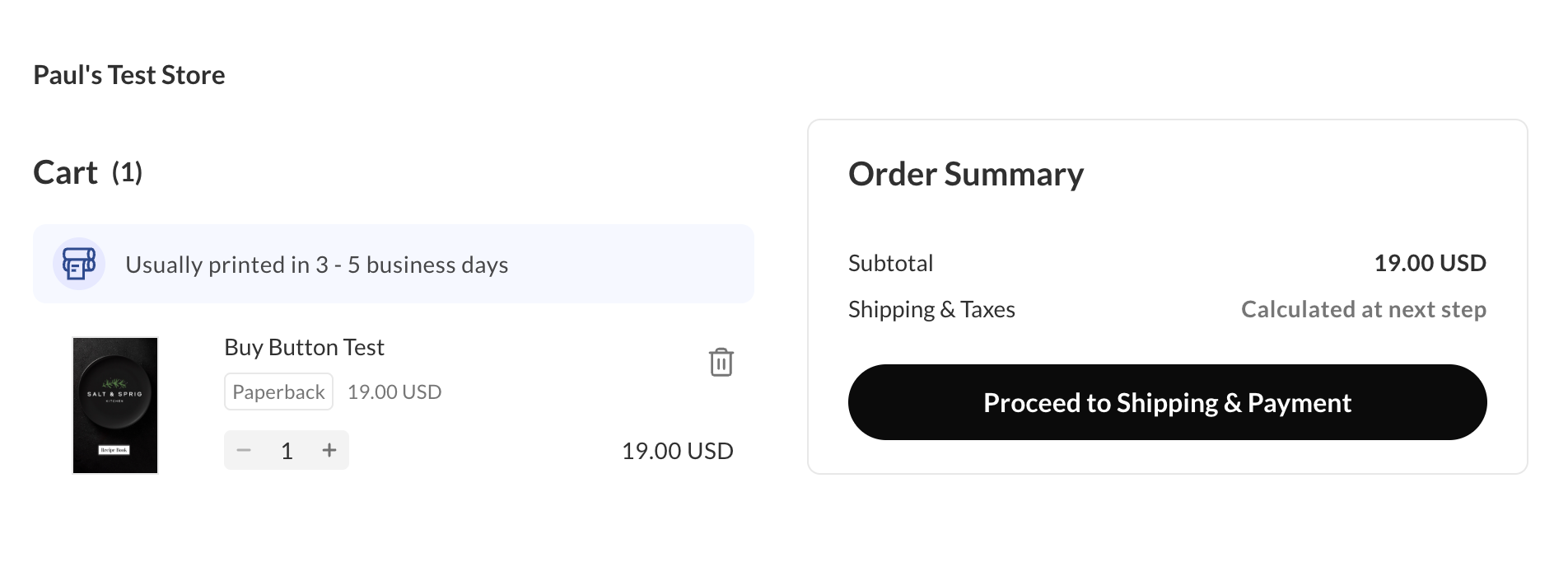
Your Buy Button is built by first publishing a print book or calendar on Lulu, then setting up a sales channel on Lulu and connecting it to a Stripe account, and finally by connecting your project to that sales channel.
It’s really very simple. Here’s a detailed walkthrough video that will outline the process for you.
Once you’ve completed the process, you’ll be able to generate a Direct Checkout link for your book. This is the URL that will create a single, unique checkout experience for your shopper.


Why is that valuable?
First off, you keep 100% of the revenue. Your buyer pays your retail price for the book, plus shipping and any processing fees.
More importantly, you can use this code anywhere. Sell your book from your social profile, your email newsletter, or, as you probably guessed, through a QR code.
Create a QR Code
Once you’ve got your Direct Buy Button all set up, you’ll have the option to create an embedded cart that looks just like any other product page. You can fully customize this with unique colors, fonts, text, and more.
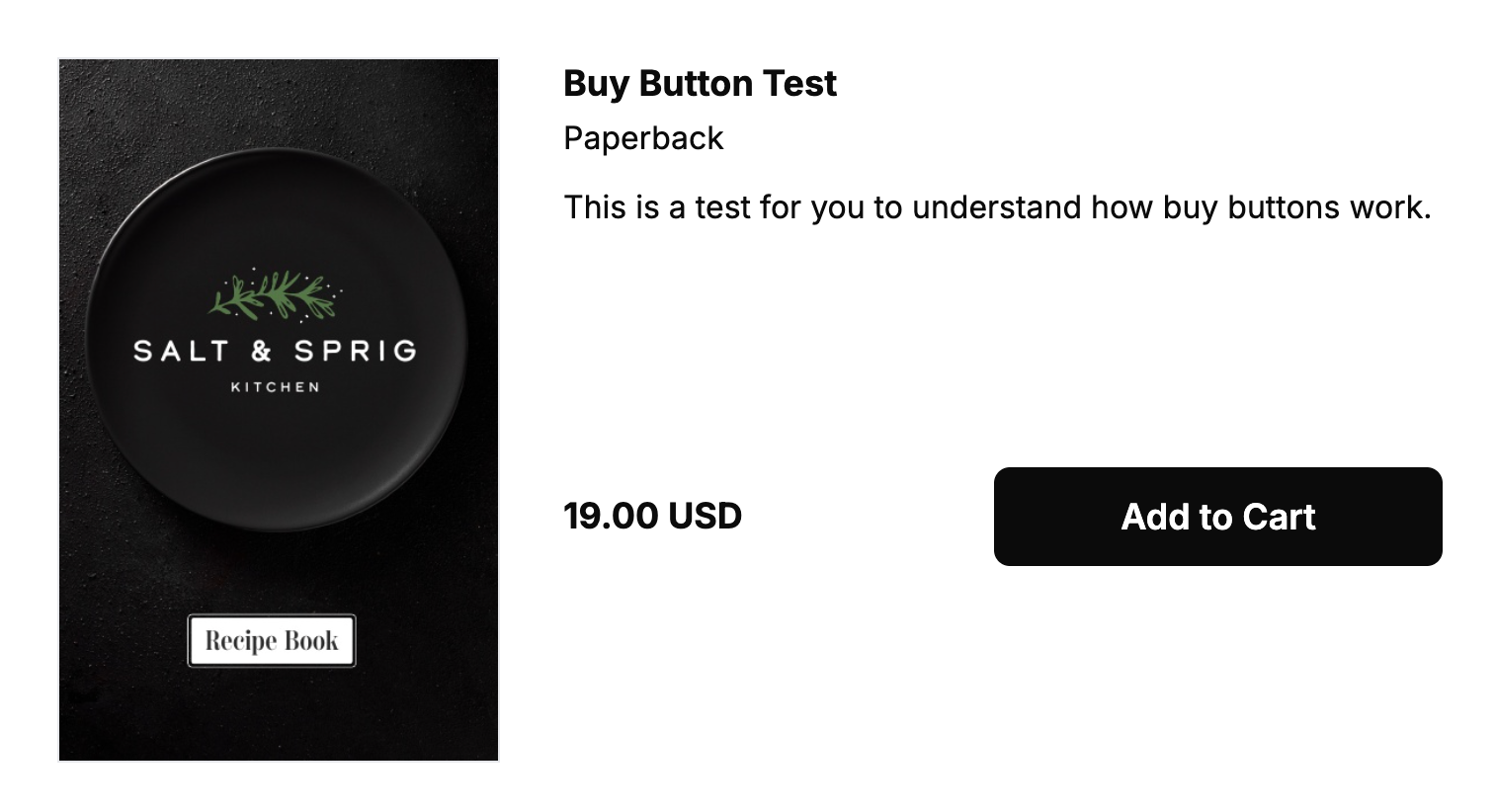
But you can also grab that single URL, the Direct Checkout link that will create the checkout for your book I mentioned earlier.
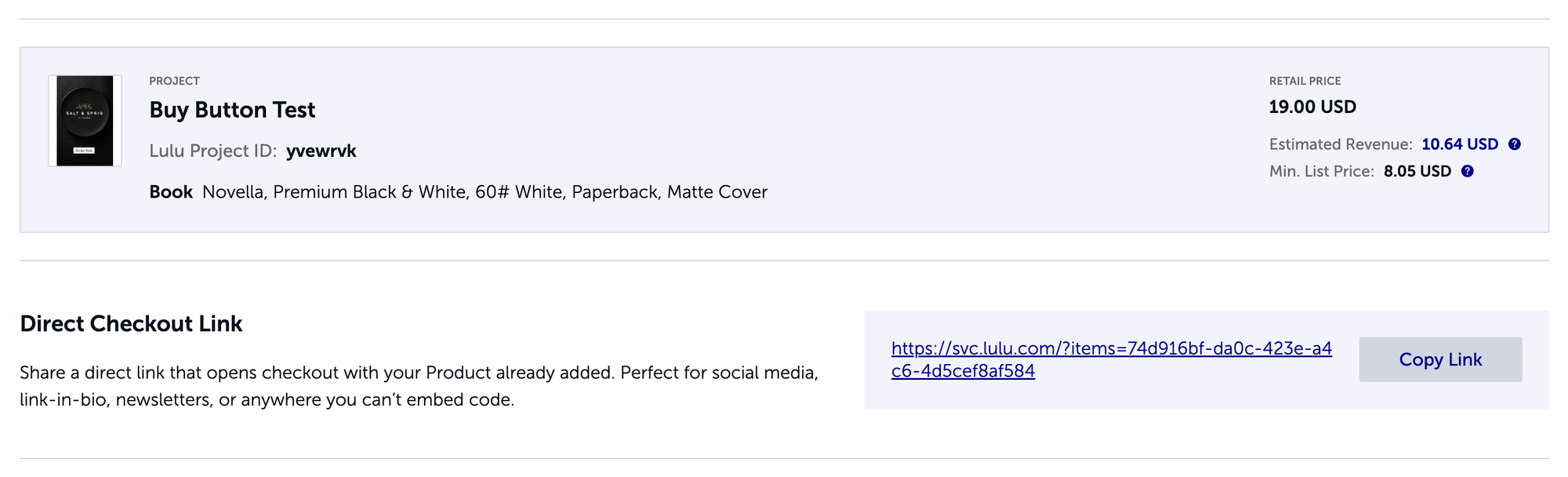
That URL is perfect for creating a QR code. And it's so easy I can explain it in two steps:
- Take your URL to a QR code generator.
- Generate the QR code and share it.
That is literally it.
Deciding How to Create Your QR Code
There are two different kinds of QR codes: static and dynamic. As the names imply, a static QR code is connected to one unique URL and only that one unique URL. Dynamic QR codes use a URL that redirects to your content, passing through the QR code platform.
Both styles have uses, so you’ll want to carefully consider what you’ll be doing with your QR code.
Static QR Codes
When you create a static QR code, you’ll have that code with one URL attached to it. Forever.
These are great for sharing a link that you’ll never change. Like sending people to the homepage of your website or a product page for one of your books.
The biggest benefit of static QR codes is that they are free. If you find a site that tries to charge a fee for a static QR code, I would not even consider using it. The platform that creates the code for you probably won’t offer any tracking or analytics, but you can still add a UTM tag to the URL for that tracking.
Dynamic QR Codes
You should use a dynamic QR code when you know you’ll need the flexibility to change the destination URL or if you want the extra analytics.
Most QR code platforms will charge for dynamic codes or only offer a limited number of these codes for a free account.
Dynamic QR codes are usually more useful for larger businesses with multiple products listed through QR codes, a greater need for in-depth data, and the budget to pay for the service.
QR Code Generator Options
There are a lot. You should do some searching and review the different options. But to get you started, I’m going to quickly review four options that are pretty common and work well.
QR Code Monkey
This is my top pick for a simple, free option. QR Code Monkey is very easy to use, offers a variety of language options, and includes background info about QR codes to ensure you understand how best to use your code. It offers a range of specific QR code types—like linking to an address or wifi access.
The QR codes you generate are static, but QR Code Monkey has good customization choices for the code design.
Adobe Express
You’re probably familiar with Adobe Express. It’s Adobe’s answer to Canva’s free design tools. Adobe’s QR code generator is very simple; you just insert a link, and it generates a code.
But you also have the option to open your new code in Adobe Express and edit it with their image tools. This is interesting, as it opens you up to creating designs around your QR code. Like a poster, business card, or bookmark. The downside is that you’ll be faced with Adobe’s near-constant attempts to get you to subscribe.
Canva
Like Adobe, Canva also has the ability to generate a QR code for you. Their QR code options require you to use one of their ‘apps’ within your Canva account.
Their designer is incredibly simple, though you can always use some of the other QR code apps within Canva. The code is dropped directly into a new or existing design, but is not easily downloaded for use in designs outside of Canva.
Bitly
Finally, we have the most popular and ubiquitous linking platform: Bitly. Known for its link shortening tools, Bitly’s QR code generator is very robust. You’ll create dynamic codes, up to 2 per month for free before you need to use their paid tier.
Overall, Bitly is probably the most powerful option for just QR codes.
Selling Your Books Everywhere.
The Direct Buy Button is meant to be the easiest, fastest way to list your book for sale on your own site. Our goal is to make direct selling available for anyone. QR codes are just another part of the wide options you’ll have to sell your books.
With a single URL for your book, you can use any QR code generator to create and share a code that links directly to a checkout experience. That includes at in-person events, on a business card, even in another of your books!