How to Use the Order Import Tool for Easy Bulk Ordering
Ordering and delivering books in bulk is time-consuming and expensive. Many times, a large order must be parsed out so books can be delivered to many addresses; a time-consuming and expensive practice. So we fixed that.
In this post, I’ll explain:
- How to set up your project on Lulu for large volume ordering
- Importing your customer’s order information
- Finalizing your order
Successful creators have an audience. Period. That audience, of course, comes from consistently offering great products, content, or services. Brand trust and followers don’t just happen. It’s a long, hard road to build that audience.
Then comes monetization. It’s great to have a thousand email subscribers or LinkedIn followers, but unless you can convince at least some of them to buy something from you, they’re just idle observers.
One of the key innovations for individual creators and small businesses needing to monetize their audience is crowdfunding models. We’ve all heard of Kickstarter. Crowdfunding offers a relatively safe way to gauge interest and secure funds before you actually produce your products.
Understanding how valuable crowdfunding can be—both for new creators and established businesses launching a new product—we built a tool that helps enable fulfilling book orders en masse.
Lulu’s Order Import Tool
The Order Import tool is Lulu’s solution for creators and authors using crowdfunding, pre-sales, and direct bulk sales. It lets you upload a list of orders for various buyers and fulfill all of them at once, in one transaction. This is a huge time saver if you need to send 50 or 100 orders out and don’t want to enter each one individually.
But I’m not here to sell you on why the Order Import tool is so useful. Instead, I want to break down the nuts and bolts of actually using the thing.


Steps to Using the Order Import Tool
First things first, we’ve got a great in-depth article in our Knowledge Base that breaks down the entire process. If you get stuck while creating your order, this is the resource I recommend.
We’ve also got this short video that runs through the process.
Okay, here’s my breakdown, starting from the very beginning.
#1 Your Lulu Account & Project
If you’re new to Lulu, the first step is always to create a free account and sign in. Then you’ll need to create a book. Before you jump into importing your orders, you have to create and publish all the books you need to ship.
This is important, as the Order Import tool only allows you to select from published projects in your account. Note that you can publish a book using Lulu and keep it private to your account. It won’t be listed on our bookstore or through retailers, but you can still include a private access book in your order import.
Lulu’s Publishing Steps in 1 Minute
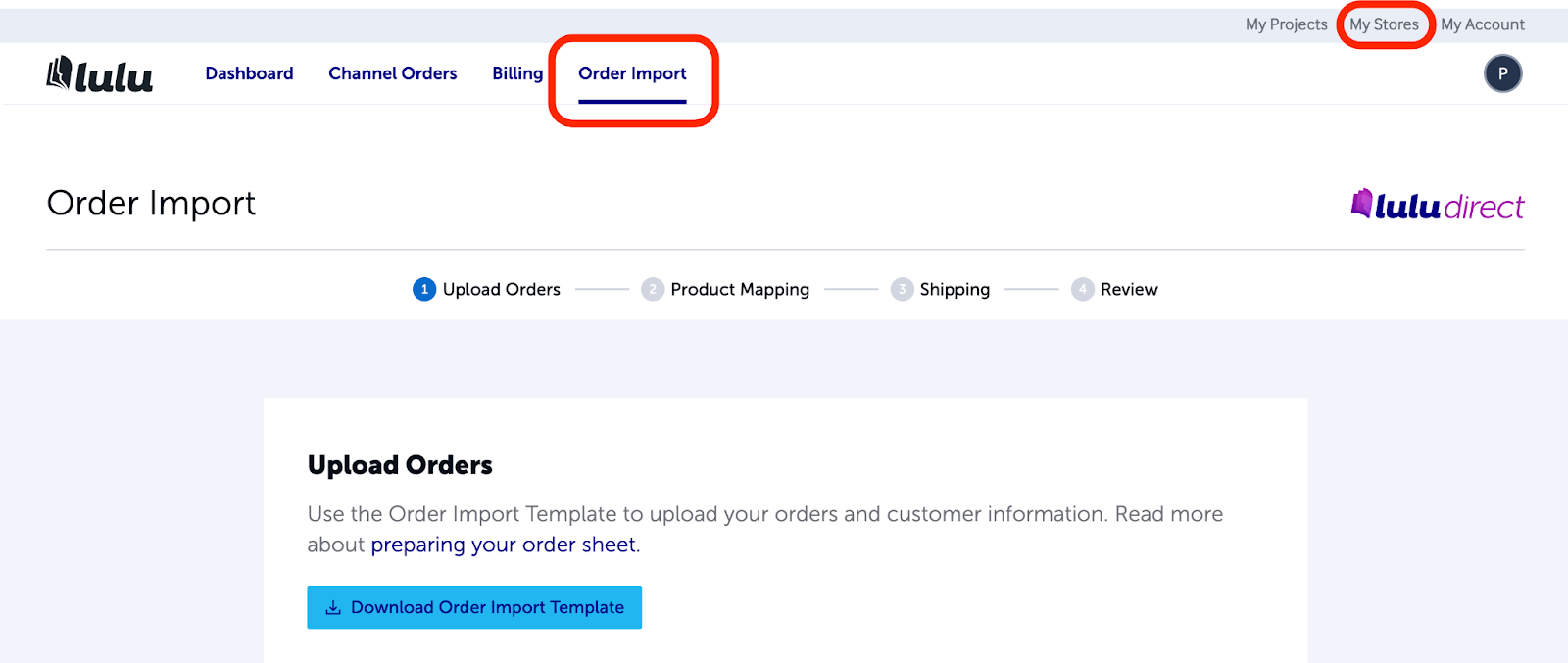
Next, you’ll navigate to the Order Import tool page, found under My Stores. Now you’re ready to download and complete the orders spreadsheet.
#2 Creating an Order Spreadsheet
This is the trickiest part for most. Download the template. Here’s a sample spreadsheet that’s worth having on hand as well.
The spreadsheet has 15 columns, with the first row including a description of what goes into each column. Some of them are pretty obvious, but I’m going to describe each one.
- Channel_Order_ID - This must be a unique ID for each recipient, either one that you create for your order or one that is provided from your crowdfunding platform.
- Channel_Item_ID - You can create the Item ID or use one supplied by your crowdfunding platform, just like the Order ID. You’ll use this Item ID in the next step.
- Quantity - The total number of the book this customer should receive.
- Shipping_First_Name - Your customer’s first name…
- Shipping_Last_Name - …and their surname.
- Shipping_Organization - This is an optional column for your business name.
- Shipping_Street_Line_1 - The shipping address, up to 30 characters, including spaces.
- Shipping_Street_Line_2 - Second line for additional shipping info, like suite or apartment number.
- Shipping_City - The city the order is being delivered to.
- Shipping_State - The state, province, prefecture, or region.
- Shipping_Postal_Code - The postal code (where applicable).
- Shipping_Country - The 2-character country code.
- Contact_Email - The contact email for your customer.
- Contact_Phone_Number - The contact phone number for your customer.
- Recipient_Tax_ID - The Tax ID for your customer (where applicable).
Not all fields are required (such as the Tax ID or State), but you will need to include the first three columns for every customer. You also need to do a separate row for each unique book. That means if you’ve got one customer who bought two different books from you, each book needs its own row, even if all the customer and shipping information is the same.
#3 Uploading Your Order Spreadsheet
Before you upload your completed order spreadsheet, you’ll have to complete two additional steps.
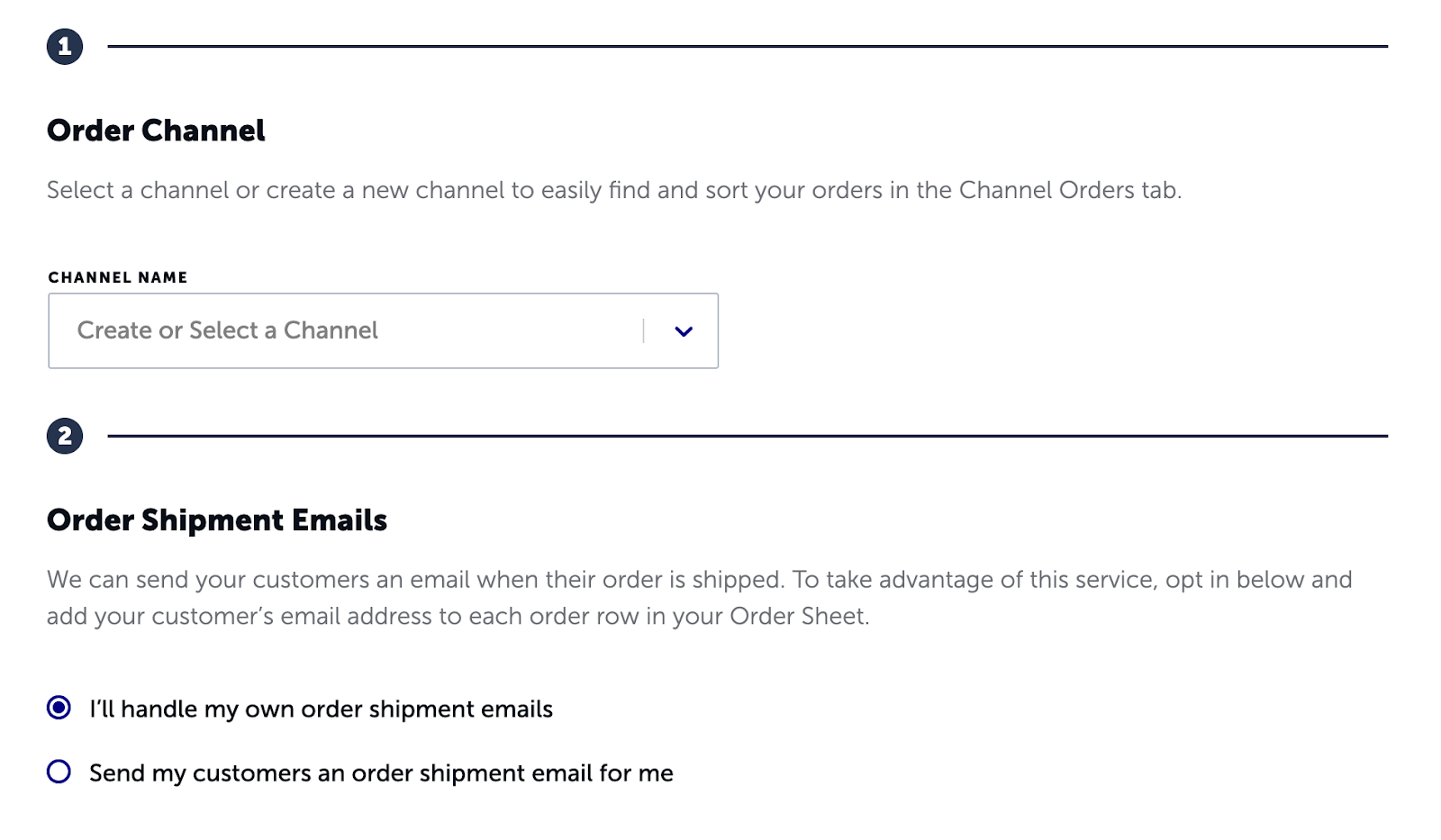
The first is to select or create an order channel. This is entirely for you and has no impact on your order or your customers. It’s just a way to organize your orders within your Lulu account. For example, if you have a subscription magazine that you send to your subscribers monthly, the Order Import tool is an outstanding way to simplify sending the physical magazine. You might want to create a specific channel—like Monthly Magazine Subscribers—and use that for each monthly order.
The second option involves order shipment emails. You can have us send those for you, or you can opt out and handle that on your side. If you’re using an ecommerce platform like Shopify to collect your orders, you may want to use Shopify’s features to send your customers shipping notifications.
Once you’ve made these two selections, you’re ready to upload your order spreadsheet.
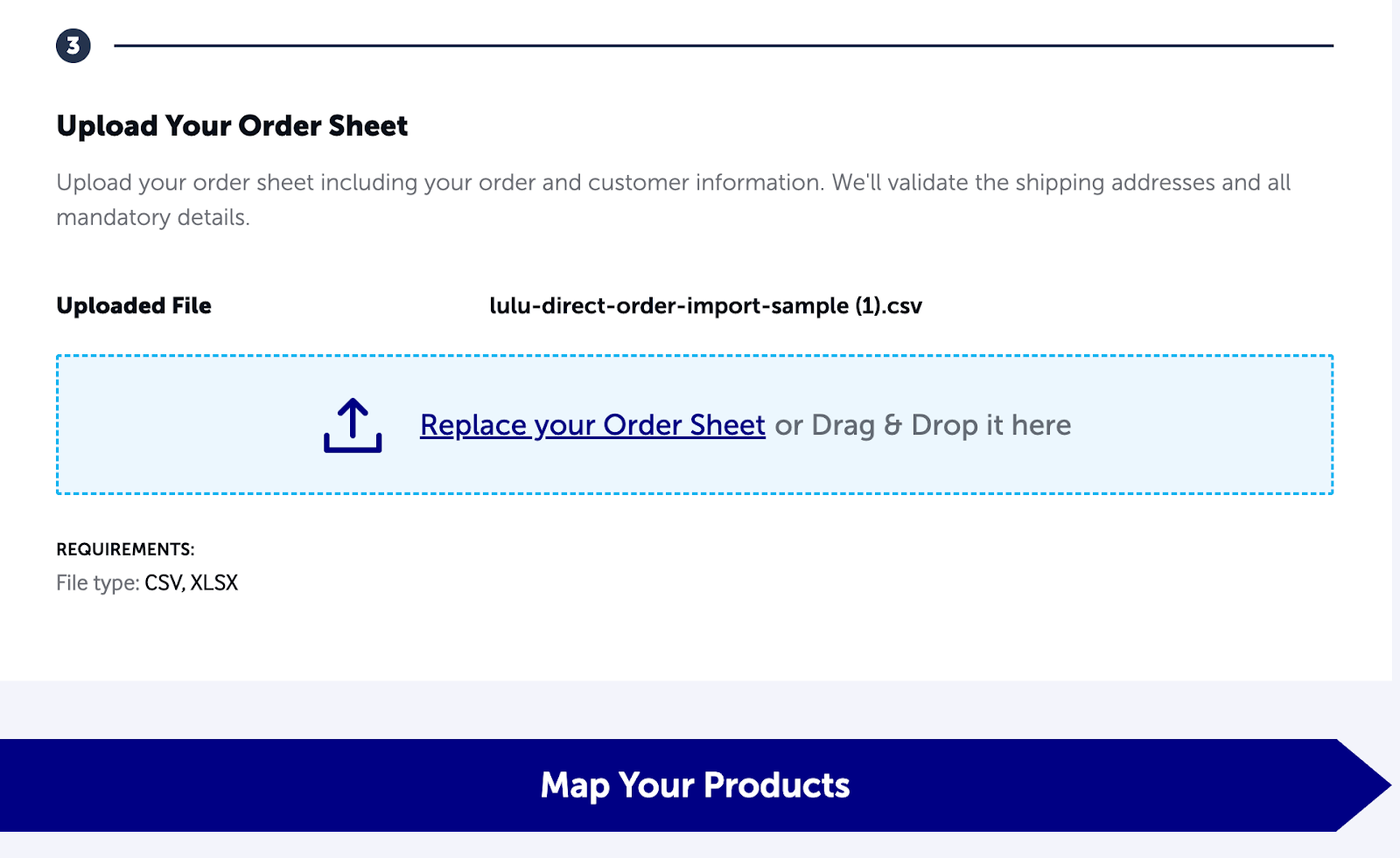
When you click the ‘Map Your Products’ button, we’ll run a check on your CSV or XLSX file to ensure you’ve included all the necessary information and in the right format. If we find errors, you’ll see this message:
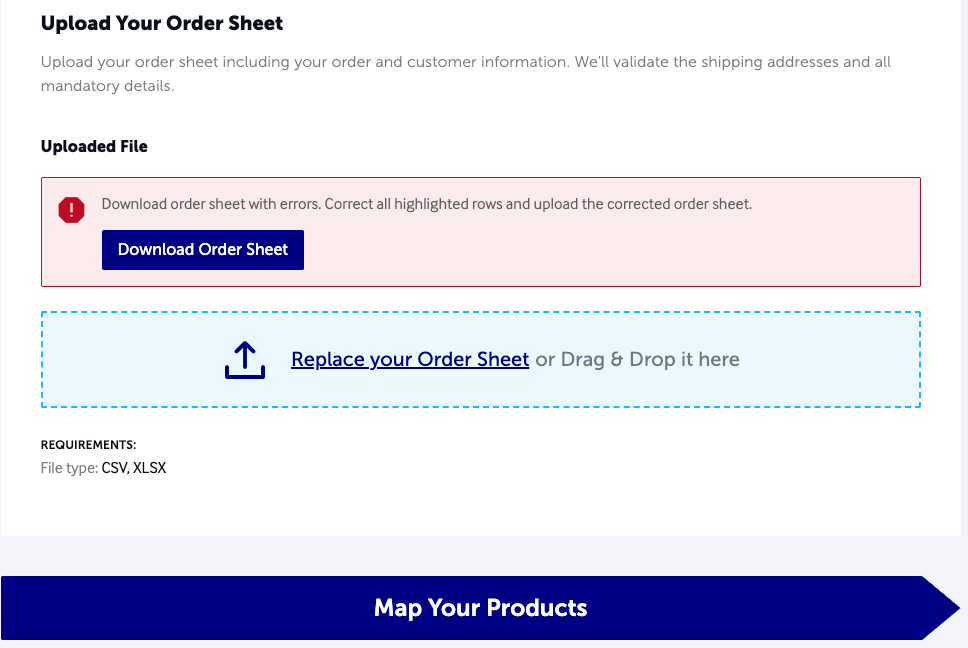
If you download the order sheet from the error message, you’ll get a copy of the exact file you uploaded with an additional ‘errors’ column that calls out the issue. In this example, I entered ‘USA’ instead of ‘US’ for the country code. The error message is tied to the exact row with the error and calls out the problem for you to fix.

Make updates to your spreadsheet and upload the corrected version to move on to mapping your products!
#4 Mapping Your Products
On this screen, you’ll select a published project in your Lulu account for each row in your order spreadsheet. This is how we know which books to send to each of your customers. It’s also where your Channel_Item_ID is helpful. If you’ve got three different books that you’re sending, you might assign them Item IDs like this:
- Book #1 = Item ID 101
- Book #2 = Item ID 102
- Book #3 = Item ID 103
Now you know which book to assign to each order based on the Item ID.
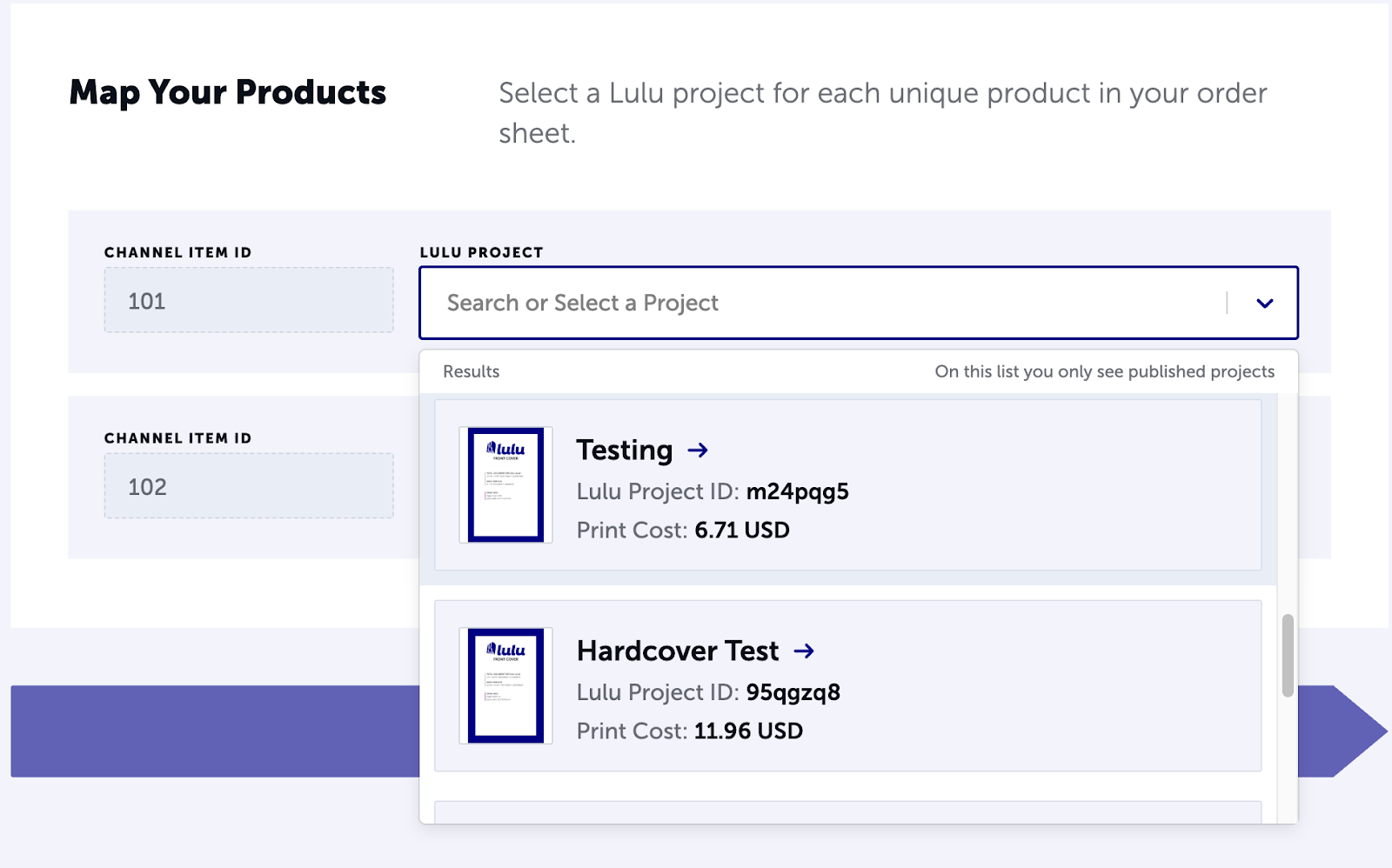
You’ll need to map a project to each of your orders before we move on to shipping.
#5 Selecting Shipping Options
On this step, you’ll select the shipping method for all orders going to each country. That means, if you have 10 orders going to addresses in the US, you’ll select one shipping method for all of them. You won’t be able to select Mail for some and Ground for others.
If you have orders going to multiple countries, you’ll see the available shipping options per country.
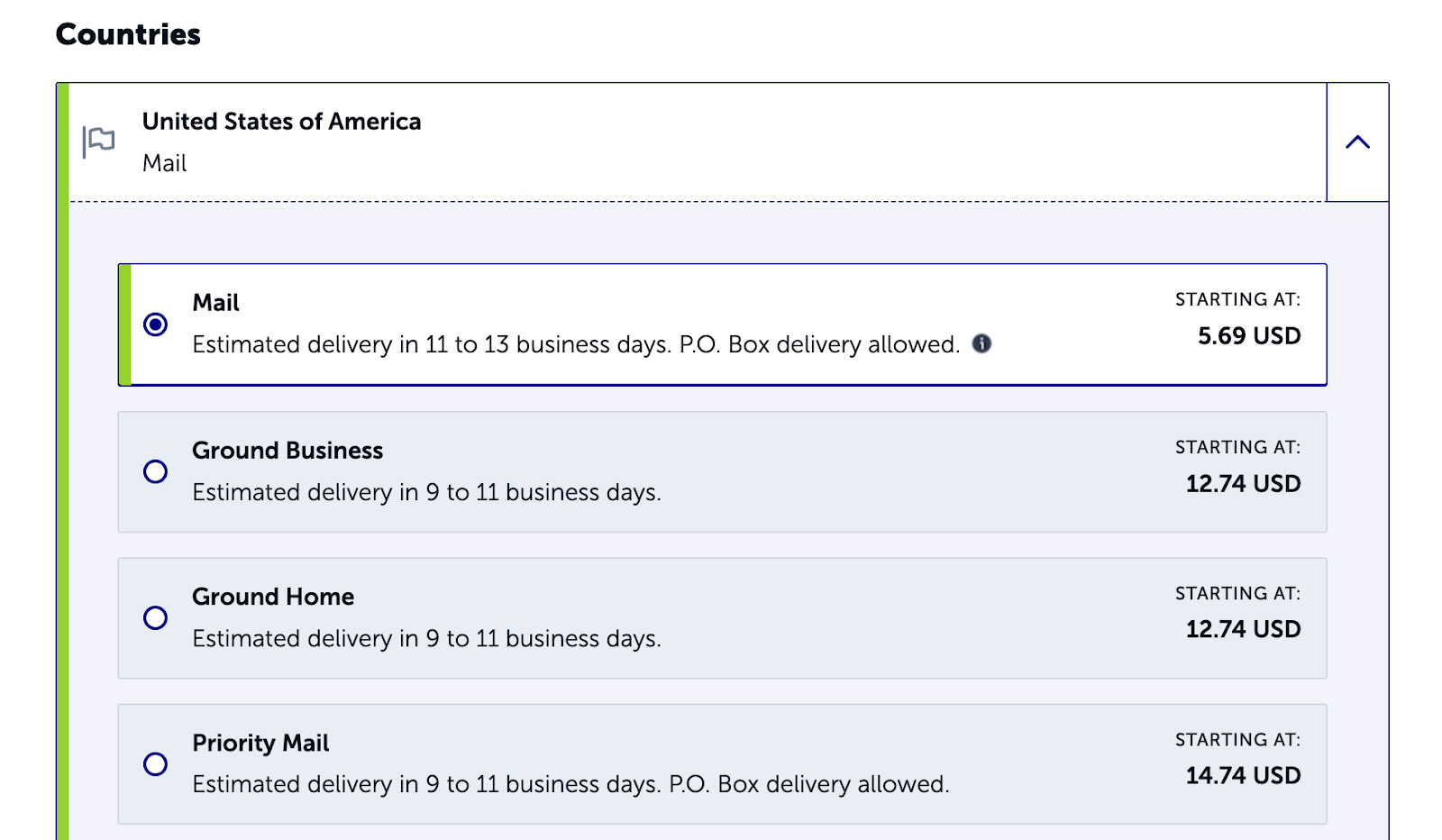
For the shipping costs, you’ll see Starting At for the pricing. This is the shipping cost for a single book, but if a customer is receiving multiple books, the cost may increase slightly.
#6 Review & Payment
We’re almost done!
At this point, you’ve uploaded your customer’s information, selected the books each customer should receive, and assigned shipping methods for each country.
All that’s left is to give your order a review.
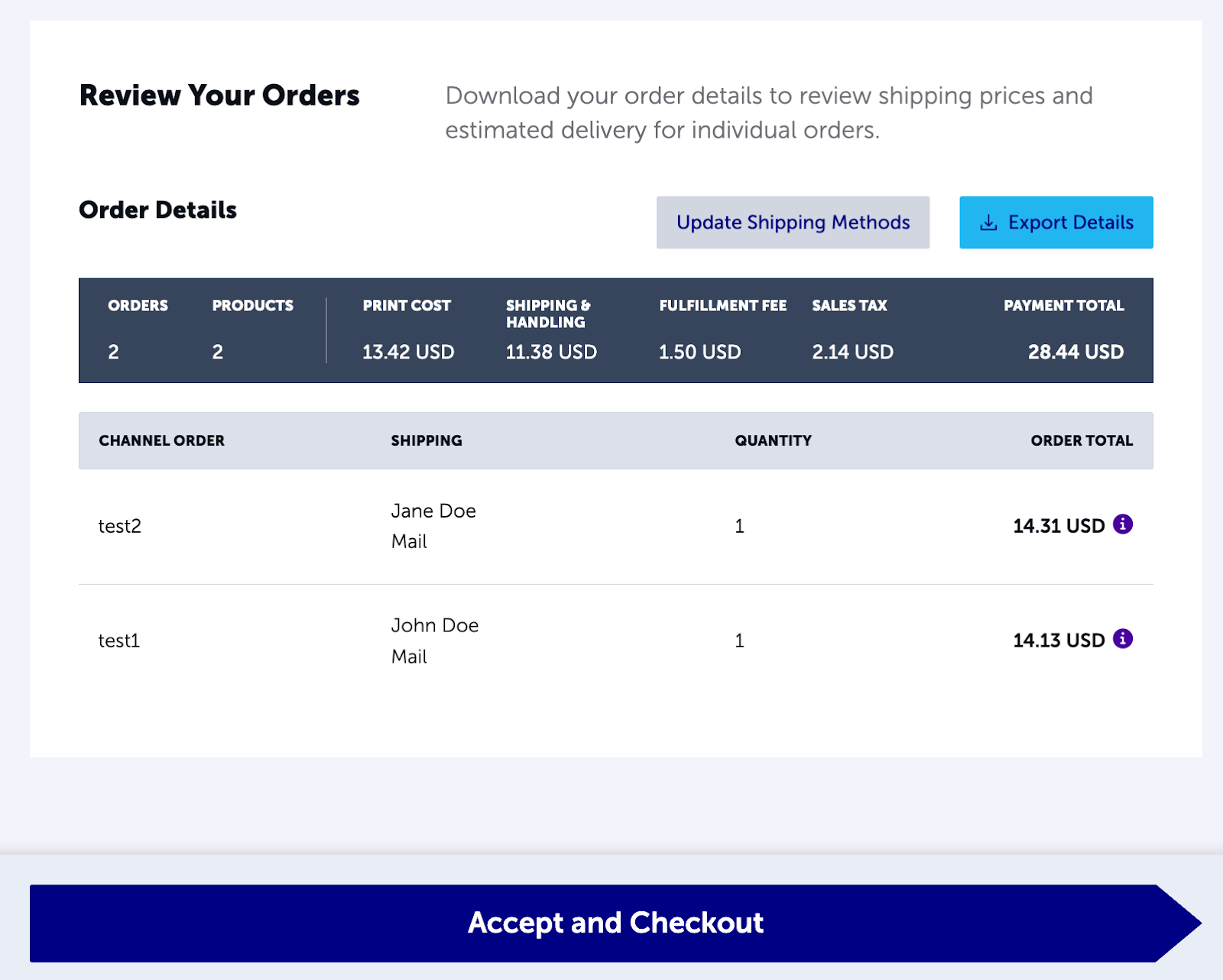
You can download your order details here for close review and backup to change shipping options if you need to. Otherwise, you can move on to checkout and complete your order!

Simplified Bulk Ordering & Dropshipping
That’s it. The Order Import tool is built for that one purpose. It’s ideal for bulk orders from crowdfunding campaigns, a book launch pre-sale, and subscription orders. But really, you can use it for any situation that involves sending multiple people copies of your books!
Lulu will package and ship each book just like we do for orders through our bookstore. If you opt into our shipping emails, we’ll automatically send updates to your customers as well, ensuring they know where their order is and when to expect it.